Install Git
Figure out what version of OS X you are running. From the Apple menu, choose About This Mac. The version of OS X installed appears directly below “OS X.” Click the version number to see the build number. You can also use System Information to find these numbers.
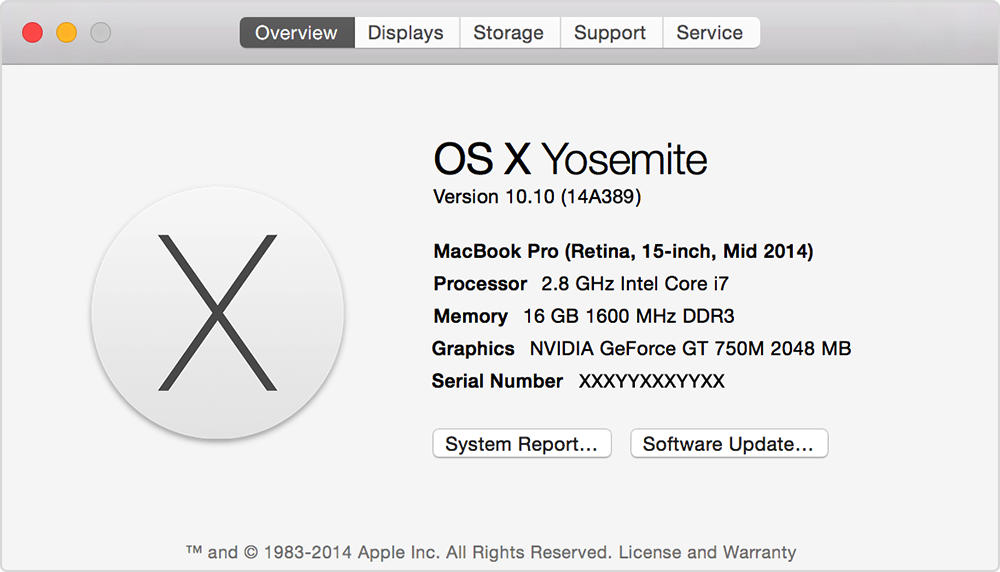
If you are running:
-
10.6 Snow Leopard: download and install this: git-*-snow-leopard
-
10.7 Lion: download and install this git-*-snow-leopard
-
10.8 Mountain Lion: download and install this git-*-snow-leopard
-
10.9 Mavericks: download and install this git-*-mavericks
-
10.10 Yosemite or higher: run the command
brew install git.
NOTE: You may need to change your install permissions to be able to install Git. The installer will prompt you to do so if necessary.
Git Config
Like artists, programmers sign their work. Let’s configure Git to sign your commits with your name and email address.
Sign up for an account at Github here.
WARNING: Before running the following commands, replace YOUR FULL NAME and YOUR EMAIL ADDRESS with the name and email from your GitHub account.
git config --global user.name 'YOUR FULL NAME'
git config --global user.email 'YOUR EMAIL ADDRESS'
git config --global core.editor 'code --wait'
Git Prompt Setup
To get started, run the following command.
nano ~/.bash_profile
This will open the file in your command line editor Nano
Copy and paste this code into the editor, underneath anything else already in this file:
#!/usr/bin/env bash

# get current branch in git repo
function parse_git_branch() {
	BRANCH=`git branch 2> /dev/null | sed -e '/^[^*]/d' -e 's/* \(.*\)/\1/'`
	if [ ! "${BRANCH}" == "" ]
	then
		STAT=`parse_git_dirty`
		echo "[${BRANCH}${STAT}]"
	else
		echo ""
	fi
}

# get current status of git repo
function parse_git_dirty {
	status=`git status 2>&1 | tee`
	dirty=`echo -n "${status}" 2> /dev/null | grep "modified:" &> /dev/null; echo "$?"`
	untracked=`echo -n "${status}" 2> /dev/null | grep "Untracked files" &> /dev/null; echo "$?"`
	ahead=`echo -n "${status}" 2> /dev/null | grep "Your branch is ahead of" &> /dev/null; echo "$?"`
	newfile=`echo -n "${status}" 2> /dev/null | grep "new file:" &> /dev/null; echo "$?"`
	renamed=`echo -n "${status}" 2> /dev/null | grep "renamed:" &> /dev/null; echo "$?"`
	deleted=`echo -n "${status}" 2> /dev/null | grep "deleted:" &> /dev/null; echo "$?"`
	bits=''
	if [ "${renamed}" == "0" ]; then
		bits=">${bits}"
	fi
	if [ "${ahead}" == "0" ]; then
		bits="*${bits}"
	fi
	if [ "${newfile}" == "0" ]; then
		bits="+${bits}"
	fi
	if [ "${untracked}" == "0" ]; then
		bits="?${bits}"
	fi
	if [ "${deleted}" == "0" ]; then
		bits="x${bits}"
	fi
	if [ "${dirty}" == "0" ]; then
		bits="!${bits}"
	fi
	if [ ! "${bits}" == "" ]; then
		echo " ${bits}"
	else
		echo ""
	fi
}

# PS1 is what actually defines what you command line prompt looks like.
export PS1="\[\e[31m\]\u\[\e[m\]\[\e[35m\]\w\[\e[m\]\[\e[33m\]\`parse_git_branch\`\[\e[m\]\[\e[32m\]\\$\[\e[m\] "
Press control X to exit
Type y to verify changes
Hit return to exit Nano
Now close terminal and open a new terminal window for changes to take effect. You will have a new prompt with additional Git and color-coded features. Don’t worry about what this means for now. You will come to understand it’s value very soon.
Final Steps
VSCode Extensions
- To add extensions to VSCode, open up VSCode. On the bottom left hand side you will see a cog icon. Click this and select extensions. A side-bar will slide out and at the top you can search for the listed extensions below and click the green ‘Install’ button:
- live server 5.6.1
- ESLint 2.0.13
- HTML Snippets 0.2.1
- HTML Preview 0.2.5
- Debugger for Chrome
Verification
By the time you’ve completed the guide, you should be able to run the following commands in your terminal:
code --versiongit --versionnode --versionnpm --versioneslint --versiontree --versionecho $PS1cat ~/.gitconfigcode- should open VScode
Each command should report a version number of what’s installed (should look similar to below example). Should you run across any errors that give you trouble please get a hold of contact below:
username@user $ code --version
1.40.2
f359dd69833dd8800b54d458f6d37ab7c78df520
x64
username@user $ git --version
git version 2.2.0
username@user $ node --version
v10.16.0
username@user $ npm --version
6.9.0
username@user $ eslint --version
v6.7.2
username@user $ tree --version
tree v1.8.0 (c) 1996 - 2018 by Steve Baker, Thomas Moore, Francesc Rocher, Florian Sesser, Kyosuke Tokoro
username@user $ echo $PS1
\[\e[36m\]\A\[\e[m\] \[\e[32m\]\w\[\e[m\] \[\e[37;40m\]`parse_git_branch`\[\e[m\]
username@user $ cat ~/.gitconfig
[core]
	editor = code --wait
[user]
	name = yourgithubusername
	email = youremail
username@user $ code
//should open VSCode